Set Up Clash-Mi on iOS
This tutorial will guide you through installing Clash Mi on your iPhone / iPad, configuring subscriptions, and using proxy nodes, helping you get started quickly from scratch.
Step 1: Download and Install the App
Please go to the App Store to search for and download the Clash Mi application. Once the installation is complete, open it to enter the main interface.
Tip: Clash Mi may not be directly searchable in certain regions (such as the Mainland China App Store). It is recommended to log in with a non-Mainland China Apple ID (such as US, Hong Kong, etc.) to download it.
If you do not have an Apple ID from another region, or find it difficult to register one yourself, you can purchase a non-Mainland China Apple ID from an online store on other platforms for secure, stable use and continuous updates.We only provide recommendations; you can also search online for other similar stores.
Step 2: Obtain the Subscription Link
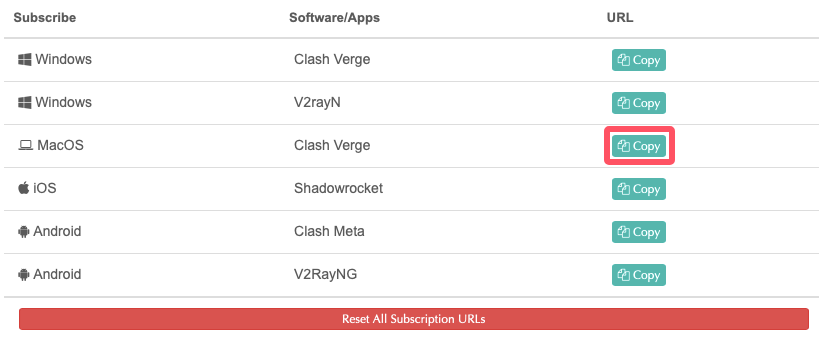
Go to the My Services page, find your purchased plan, and open its details.
Click Copy Clash Verge Subscription Link (this subscription URL is also compatible with the Clash Mi client).
Step 3: Add Subscription Configuration
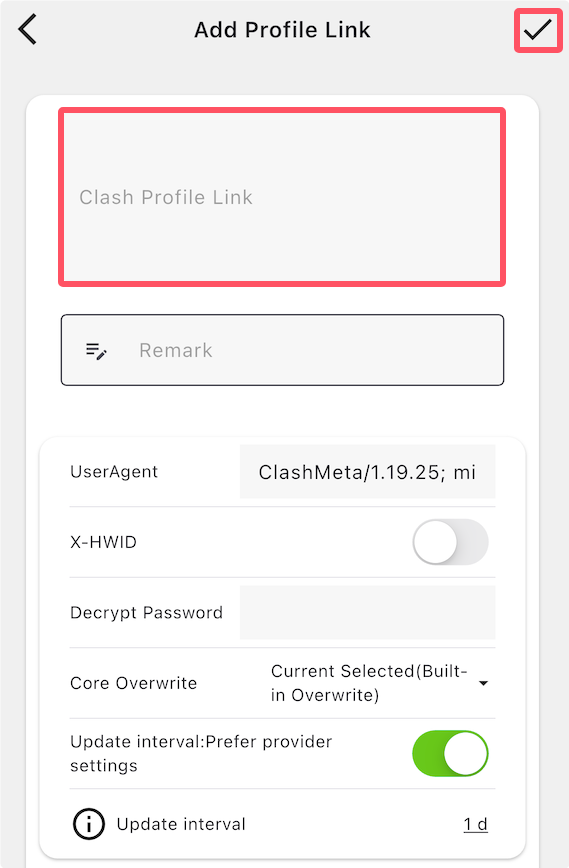
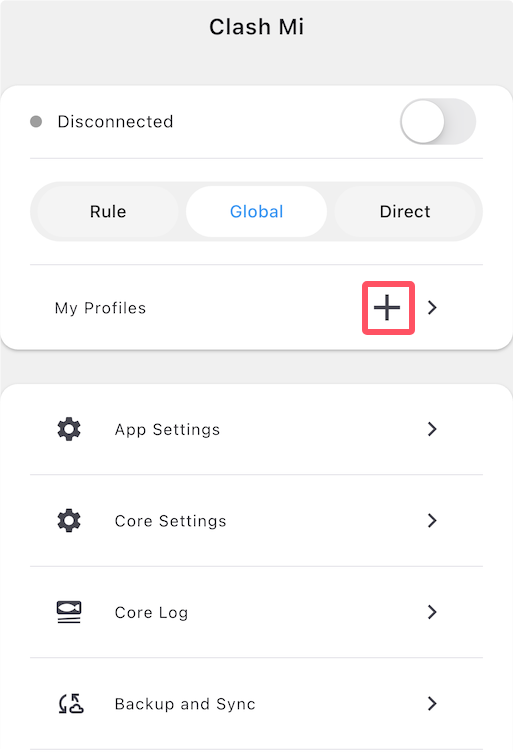
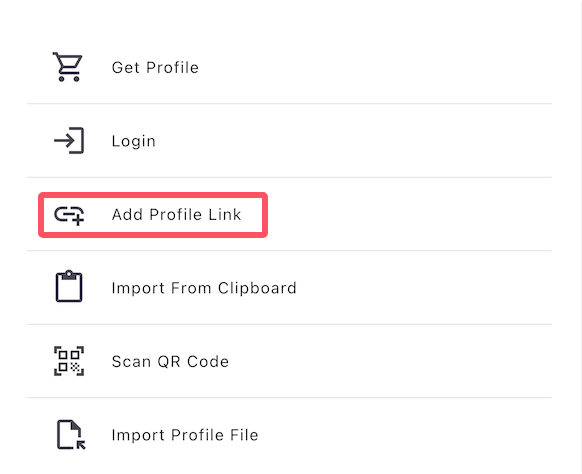
Open Clash Mi and go to the main page. Find "My Configuration" and tap the + button on the right, then select "Add configuration link".
In the "Clash configuration link" field, paste the subscription URL you just copied. Keep all other settings as default, then tap the ✔ button in the top-right corner to save.
Step 4: Enable Proxy and Select Nodes
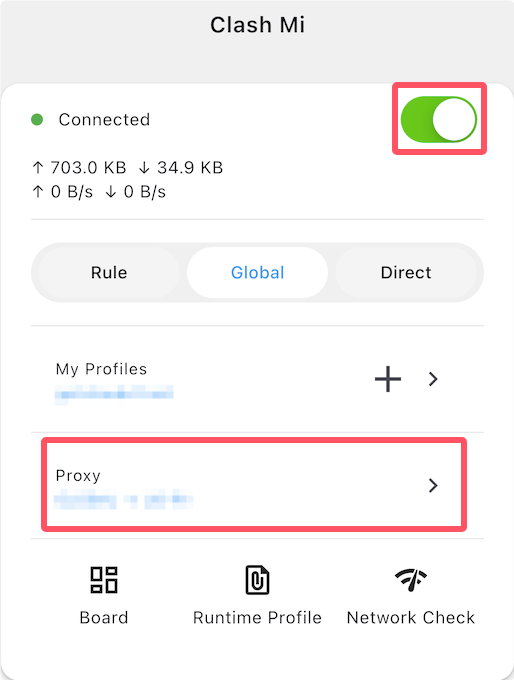
After configuration is completed, return to the main screen and turn on the proxy switch in the top-right corner. Then go to the "Proxy" section to select an available node.
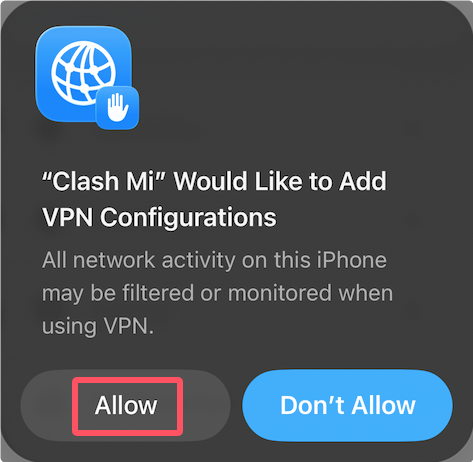
Important: On first use, the system will prompt you to add a VPN configuration. Please tap Allow and complete the lock screen password verification. Otherwise, the proxy will not work properly.
Step 5: Update Node Information
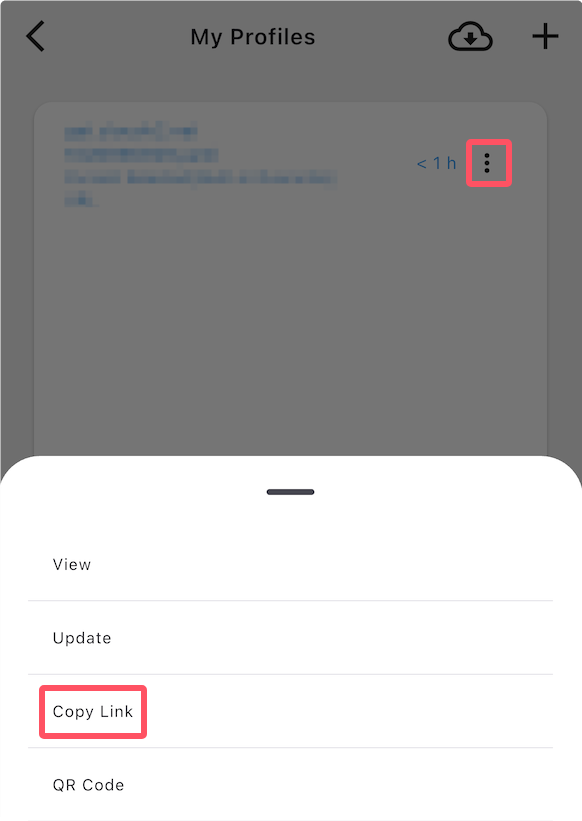
If nodes cannot connect or need to be refreshed, go to "My Configuration", tap the ⋯ menu next to the configuration, and select "Update" to resync the latest node information.
Important Notes
- If connection fails, check whether the subscription link has expired, or manually tap "Update" to refresh the configuration.
- It is recommended to set the proxy mode to "Rule mode" for daily use, enabling smart routing where local traffic is direct and international traffic goes through the proxy.
- Make sure VPN permission is granted during first-time setup, otherwise nodes will not connect properly.