Set Up HolyTech on macOS
HolyTech macOS User Guide
Welcome to HolyTech. This guide will assist you with client installation, account login, node configuration, and proxy activation on macOS, helping you set up and start using the service quickly.
1. Install the HolyTech Client
- Click here to download the HolyTech client installation package for macOS.
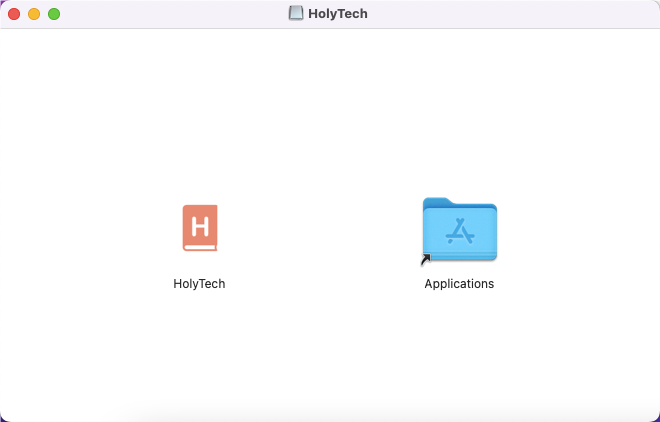
- Once the download is complete, double-click to open the installation file (.dmg).
- Drag HolyTech.app into the Applicationsfolder.
- Open Launchpad or your Applications folder to find and launch HolyTech.
First-time Launch Tip
Due to macOS security mechanisms, a security prompt may appear when opening the app for the first time. If the system blocks the launch, please go to: System Settings → Privacy & Security, locate the relevant prompt, and click "Open Anyway" to grant authorization.
2. Log in to Your HolyTech Account
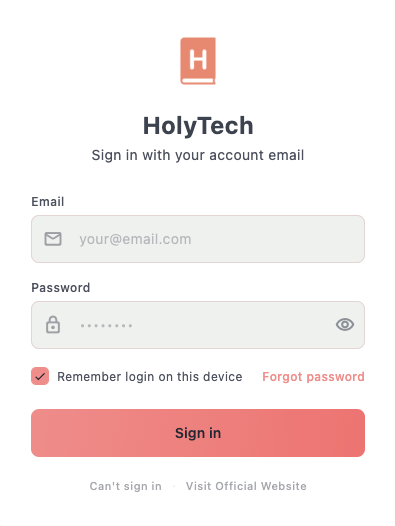
After launching the client, the login page will be displayed.
- Enter the email address you used during registration.
- Enter your account password.
- Click "Log In" to enter the main interface.
If the account information is correct, the system will automatically sync your plan details and node data.Login interface not displaying correctly?
In a few macOS environments, system restrictions may cause the login page to appear blank or fail to load. You can try the following method:
- Quit HolyTech.
- Open Terminal.
- Execute the following command:
sudo xattr -r -d com.apple.quarantine /Applications/HolyTech.app
- Enter your administrator password.
- Once completed, reopen HolyTech.
3. Select a Node and Connect
After logging in successfully, it is recommended to select an available route first.
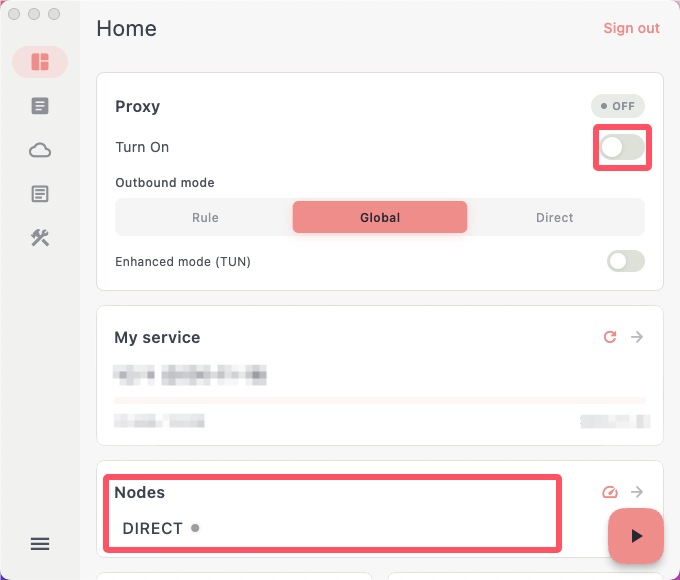
- Go to the Node List from the home screen.
- Select your desired node or region.
- Return to the main screen.
- Turn on the proxy switch in the upper right corner.
When the status shows "Connected", it indicates that the proxy service has been successfully enabled.
4. Sync the Latest Node Information
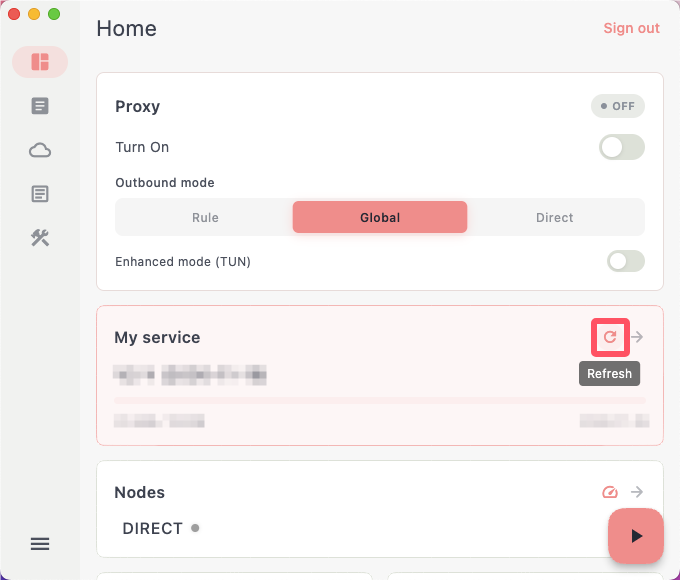
If you have just completed a purchase, renewed your subscription, or if there is a service update, it is recommended to sync the latest data first.
Click the Refresh Nodes button on the home screen to fetch the latest configuration.
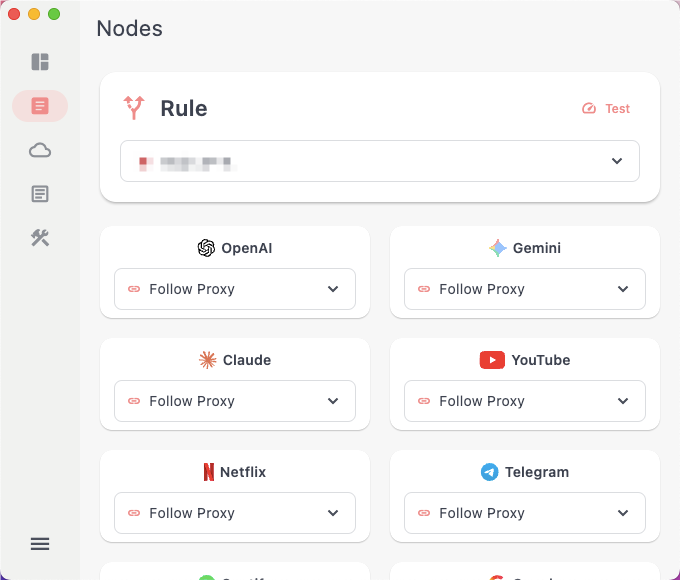
5. Rule Mode and Routing Rules
HolyTech provides a smart routing function that allows you to specify dedicated nodes for different platforms, improving stability and user experience.
- Go to the Rule Configuration page.
- Select the service you want to configure.
- Assign the corresponding node.
- Save settings.
It is recommended to use US nodes for AI services. For streaming services, you can choose routes such as Hong Kong, Japan, or Singapore according to your needs.6. Download Older Clients (Optional)
If you prefer to use an older interface or need compatibility with older macOS versions, you can download the following versions.
- Intel Mac (x64)
Download HolyTech v1.5.0 x64- Apple Silicon (M1 / M2 / M3 / M4)
Download HolyTech v1.5.0 ARM64- macOS 10.15 and below Compatibility Version
Download HolyTech v1.4.0
Frequently Asked Questions (FAQ)
Q1: macOS says HolyTech cannot be opened because the developer cannot be verified.
This is a standard macOS security feature. Go to System Settings → Privacy & Security and select Open Anyway.
Q2: The login page is blank or stuck loading.
Run the following command in Terminal:
sudo xattr -r -d com.apple.quarantine /Applications/HolyTech.appThen restart HolyTech.
Q3: No nodes appear after logging in.
Verify that your subscription is active, then click My Service → Refresh.
Q4: The proxy is enabled but internet access is unavailable.
- Switch to another node.
- Disable and re-enable the proxy.
- Restart HolyTech.
- Check firewall or security software settings.
Q5: My traffic quota or plan information is not updated.
Refresh your service information or log out and log back in.
Q6: Node changes do not take effect immediately.
Disable and re-enable the proxy or restart the application.
Q7: How do I know whether my Mac is Intel or Apple Silicon?
Click the Apple menu → About This Mac. If the processor shows Intel, download the x64 version. If it shows Apple M1, M2, M3, or M4, download the ARM64 version.